 PIKAST
Help
Getting started, adding shows by their link, sync and how to reach us.
Getting started
- Open Discover and search for a show, or pick one from the top charts.
- Tap + to follow it. It appears under Podcasts, with new episodes as they come out.
- Tap the play button to listen. Tap an episode's title to open its details, where you can add it to Up Next or a playlist, download it, star it or mark it played.
- Coming from another app? Export your subscriptions as an OPML file there, then use Settings › Import & export in PIKAST.
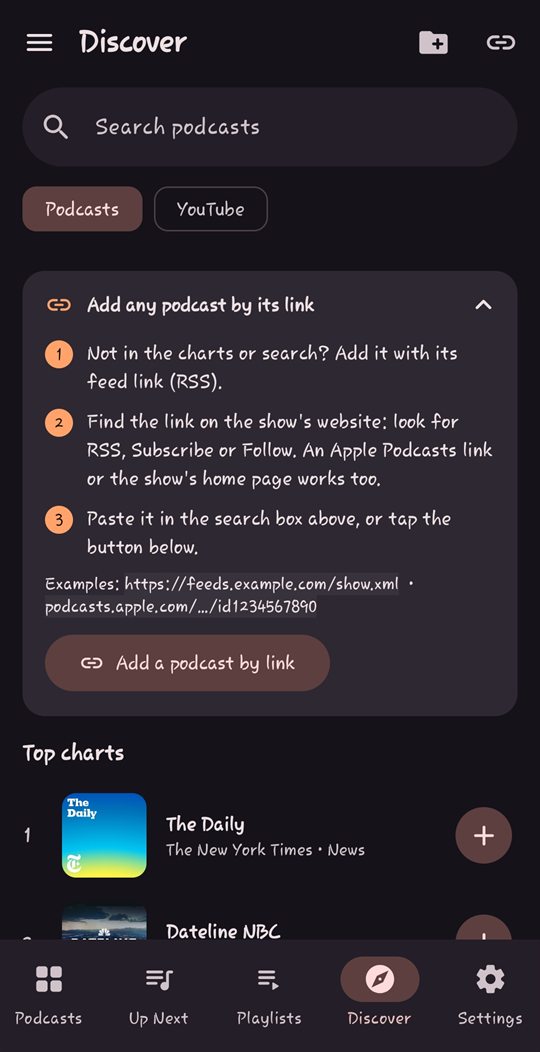
Add any podcast by its link
- Not in the charts or search? Add it with its feed link (RSS).
- Find the link on the show's website: look for RSS, Subscribe or Follow. An Apple Podcasts link or the show's home page works too.
- In Discover › Podcasts, paste it in the search box, or tap Add a podcast by link.
Examples: https://feeds.example.com/show.xml · podcasts.apple.com/…/id1234567890
Add a YouTube channel or playlist
- In the YouTube app, open the channel or playlist, tap Share, then Copy link. You can also share it straight to PIKAST.
- In Discover › YouTube, paste the link in the search box, or tap Add a YouTube channel or playlist.
- New videos show up like podcast episodes. They play in YouTube's own player.
Examples: youtube.com/@channelname · youtube.com/playlist?list=…
Questions
Do I need an account?
No. PIKAST has no accounts and no sign-in. Everything you follow and play stays on your device.
How does sync work?
Sync is part of PIKAST Plus. Your devices share a sync key: turn on sync on one device, then enter the same key on the others (Settings › Sync). Your library is encrypted on your device before it leaves, so PIKAST's servers can't read it. Downloaded files and audiobook folders stay on each device.
What does PIKAST Plus cost, and is it a subscription?
It's a one-time purchase through Google Play, not a subscription. It covers sync, the web app at pwa.pikast.app, volume boost and other extras. Bought it already? It's restored automatically from your Google Play account.
Why doesn't a YouTube video download or keep playing in the background?
In the Google Play version, YouTube videos play in YouTube's own embedded player, as YouTube requires. Podcasts download and play in the background as usual.
A show stopped updating or won't add.
PIKAST checks for new episodes on its own (Settings › Podcasts & refresh sets how often). If a show moved to a new feed, add it again with its current link. YouTube's public feed for a channel is sometimes down for a while; PIKAST says so instead of failing silently.
How do I delete my data?
Your library lives on your device: uninstalling PIKAST removes it. Synced data is deleted automatically 180 days after a sync key was last used, or right away if you email us. See the privacy policy.
Contact
Ideas, bugs or praise: pikastapp@gmail.com. In the app, Settings › Send feedback opens an email with your app version and device details filled in.